Getting Started with Salesforce for Google Apps
The Salesforce for Google Apps functionality is live now! To get started, go to Setup and find the Google Apps Settings menu.
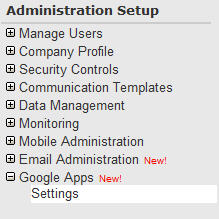
Step 1 is to identify your domain. Your company must have an existing Google Apps business account to do this.

Step 2 is to enable the features you want. This will be your main control panel for managing these settings.
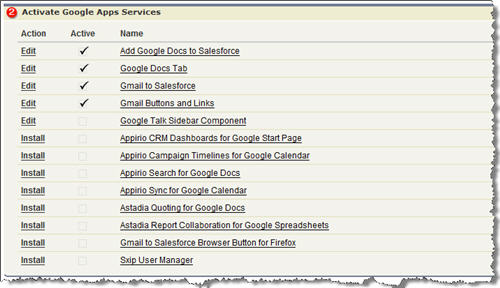
Some observations:
- The Add Google Docs to Salesforce feature is very cool and will be very useful! It adds onto the existing Notes & Attachments related list and lets you create/associate a new Doc, Spreadsheet or Presentation to a record. You can also look for an existing document you have and associate that. I am not sure how it handles access to the document by others. You might have to specifically collaborate with people.

I did not see any Mail Merge capabilities with this feature.
- When you enable the Google Docs tab, it adds the tab onto every application you have rather than asking you. You have to edit each application to remove it. This feature is nothing too special. Just a tab to Google Docs. I don’t see any special development Google did on their end to refer to Salesforce in their UI.
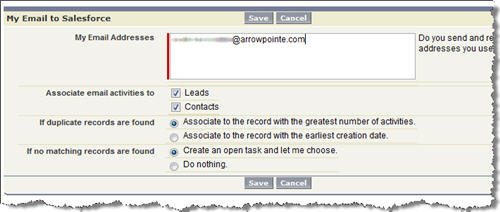
- Enabling Email to Salesforce gives each user a new Email Settings screen where they can edit their personal settings. The idea here is that you BCC a special email address and Apex code will process it and associate the email to your Lead/Contact. I tested it and attachments do not get saved.
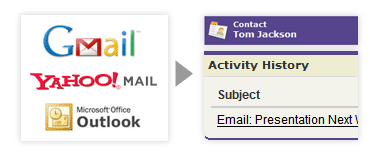
Email to Salesforce is not limited to Google Apps. The image Salesforce has includes gMail, Outlook and Yahoo! Mail.
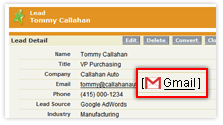
- Enabling gMail Buttons & Links adds a gMail link to every email address field. When you click it, a gMail window opens to compose a new email. A special Salesforce email address is BCCed on the message so that it will be processed right into Salesforce for you and associated with the record.

- Enabling the Google Talk Sidebar Component puts the same Google Talk widget you see in gMail on the Salesforce sidebar. I opted to keep this turned off as I’ll keep using my Trillian client. This feature is not pulling Contact names into gTalk. It’s simply putting your current gTalk contact list on the sidebar. You’d add people the same way as if this integration never existed.
- I didn’t try any of the 3rd party apps. At first glance the Calendar Sync and Report Collaboration sound the most interesting.
What do you think about the new functionality?
