Archive for Configuration Category Feed

Invisible Fields in a new Org

When you have a new Salesforce Org setup for your company, there are some fields that default to being invisible in the Field Level Security settings. I am not sure why they default this way, but they do. Below is the list of fields that are invisible (even to the System Administrator) by default.

  • Assets: Product Code, Product Description, Product Family
  • Cases: Asset, Closed by Self-Service User, Closed When Created, Visible in Self-Service Portal
  • Contacts: Do Not Call, Fax Opt Out
  • Contract: Contract Name
  • Events: Visible in Self-Service
  • Leads: Do Not Call, Fax Opt Out
  • Opportunities: Campaign Source, Private
  • Tasks: Type, Visible in Self-Service

You can make these fields visible in your org by editing their Field Level Security settings. If you have questions about the purpose of these fields, check out the Help section of your Salesforce application.

Comments (2) comments feed

Dynamically Required Picklists

Although Salesforce does not fully support dynamically required fields, you can use the dependent picklist feature from the Winter ’06 release to implement this functionality when the field to be required is a picklist field and it’s requirement-rule is based upon another single picklist (or checkbox) field. To illustrate, the following requirement is common for many sales organizations and can use dependent picklists to fulfill it.

Require the end user to select a Reason Lost when the Opportunity Stage is set to ‘Closed Lost’

The steps to accomplish this are:

  1. Create a custom picklist field called ‘Reason Lost’ on the Opportunity Object.
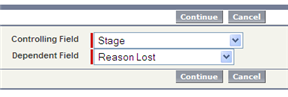
  2. After creating the field, add a Field Dependency with the Stage as the controlling field.
  3. Add Stage as a Controlling Field

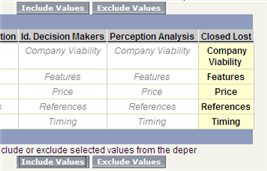
  4. Associate all of the Reason Lost values with the Closed Lost controlling value.
  5. Add Reason Lost as the Controlling Value

  6. Add the Reason Lost field to the Page Layout and require that field.
  7. You are already finished!

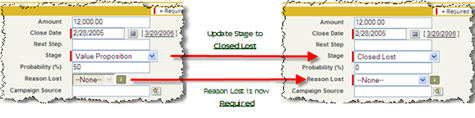
Here it is in action. While the Stage is set to values with no corresponding Reason Lost values, the Reason Lost field is read-only and is not required. Once the Stage is changed to Closed Lost, the Reason Lost field becomes read-write and is required.

Reason Lost is now required when stage is Closed Lost

Comments (8) comments feed

Tag Cloud of Salesforce Related Blogs

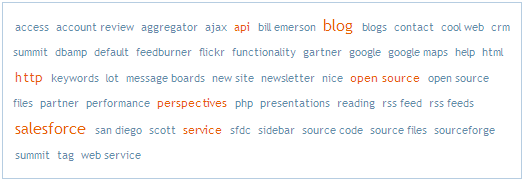
I came across a cool web service called Tagcloud. The site creates a tag cloud of keywords based upon whatever RSS feeds you give it. I decided to create a Tag Cloud that included some Salesforce blogs: mine, Salesforcewatch.com, Successforce and the Sforce blog.

Tag Cloud of Salesforce.com related blogs

The permalink to the tag cloud is http://www.tagcloud.com/cloud/html/Salesforce/default/50

To change the number of tags displayed, just change the number at the end of the URL (currently 50 tags are shown).

Since most rss feeds do not contain a full history of posts, the cloud is only made up of the posts in the current feed.

Comments off comments feed

Publishing Salesforce.com to an RSS feed (the easy way)

I posted a while back about how someone published Salesforce.com to an RSS feed. I didn’t receive any details about how this was done.

I decided to give this a try on my own using tools that I was familiar with and without having to write any code. I accomplished this using Blogger to create my blog and Salesforce.com workflow to perform the publishing to the blog. It took about 1 hour including testing time. I did the example with Leads, but this example could work with any object that supports workflow.

All I did was:

  1. Created a new blog at Blogger.com. Any blog tool will work as long as it supports posting to the blog via email (most, if not all, do).
  2. This blog could be hosted on blogspot.com (Blogger’s hosting site), but then it is publically viewable on the Internet. You can help your cause by not putting in the blogspot listings and not pinging weblogs, but it’s still out there. Instead, I published it to a folder on my web site and added password protection to access that folder. I created a “blogger” FTP user on my site that has direct access to that folder and nothing else on my site.
  3. Create a workflow in Salesforce.com based on the Lead object. For testing purposes, I set it up to only trigger on new leads and had criteria where the Create Date > 1/1/2000. Thus, it triggered for every new lead. The workflow alert I setup sent an email to the posting email address of the blog. Blogs support HTML formatted emails, so you can create a nice looking email template to post the information to the blog and make it look nice. Be sure to include a link to the record in the email template so a blog reader and go right to that record in Salesforce.com is necessary.
  4. The blog posting was published immediately. After adding a lead, I immediately refreshed the blog page in my browser and the data was already there.
  5. For added convenience, I added the blog RSS feed to my Newsgator Online account and was able to see the postings from there.

I was able to do all of this in ~ 1 hour and everything I used is free and required no fancy code. It does take knowledge (if you do step #2) about setting up a folder on your web site, password protecting it and adding an FTP user to access that folder as their root. However, with my ISP, I can do all of that with point-and-click, so it was a piece of cake.

Personally, I don’t see much use in publishing leads in this manner because people should be encouraged to use Salesforce.com instead of another tool. However, this concept could be powerful in other capacities. For example:

  • Run a script to pull statistics out of Salesforce.com and publish the results to the blog for executives to view. This only makes sense if your organization is particularly frugal about licenses. Option 1 would be to use Dashboards for this, but if people don’t have access, this could be a good way.
  • Run a script to post to your CRM Project Blog about the success of the project thus far.
  • When running an integration, use a blog to post the integration run summary. This posting could then have links to the detailed log files on the network. Use multiple blogs too. Perhaps have 1 for the standard summary and 1 for high alerts.
  • Use it as an escalation path for cases when the escalation team is not yet online with Salesforce.com. This would be an alternative to emailing people directly or using a mailing list.

The point of this posting is about the value of RSS and how it should not be forgotten when thinking about solutions in your Salesforce.com implementation.

Comments off comments feed

Use an HTML homepage component with links to public reports

Over time, the Reports tab can be cumbersome to navigate through. You can only create 1 level of report folders and the reports are simply listed alphabetically. Try using an HTML component on the homepage with links directly to reports to help your users get right to the reports they need.

  1. First, determine the public reports being used most often in the organization. This can be done by surveying users. Also ask your users the type of reports that they are creating for personal use. Perhaps everyone is creating reports that are very similar, but not identical. You could create a public report that gets them 90% of the way there.
  2. Next, make sure all of the public reports are created properly and accessible in the Reports tab.
  3. Create the HTML component. The HTML component will allow you to use the flexibility of HTML to create a user-friendly look and feel with links pointing directly to your reports. Since every report (and every record, for that matter) has its own unique URL, you can link directly to those public reports. If desired, you could also create links to pages in the setup area such as Change Password, My Templates, My Personal Information, etc. Another useful thing would be to create links directly to any documents you have in the Documents tab that users reference regularly.
  4. Communicate and obtain feedback from your users. Then build this out over time. You will likely receive varying requests from different groups. Using separate homepage layouts, you could display differing HTML components on each, giving each profile its own component.

I have received a positive response from users when they see this functionality. Give it a try. Let me know what you think too.

Comments off comments feed

Next entries » · « Previous entries