Developers’ Sidekick for Salesforce.com
Product: Developers’ Sidekick for Salesforce.com
Product Page
On AppExchange

Developers’ Sidekick for Salesforce.com is a nice little item to have in your quiver. It’s a free application for download (my license defaulted to 1 year of activation) that provides you a quick look at your Salesforce objects, references to those objects and, for picklist fields, available values. Per the website:
Developers’ Sidekick for salesforce.com is a free client application that displays objects and their fields, their properties and parameters, including pick-list values. Developers’ Sidekick provides a handy instant reference for people developing custom apps or designing reports.
Upside Outcomes Ltd, the maker of this tool, has other Salesforce.com related tools, most of which are in development. I have not had a chance to check them out yet.
In order to use the application, you need to complete a contact information form with, at a minimum, an accurate email address. A serial number will be emailed to you to enter into the application for activation.
Once you enter your Salesforce.com login credentials, the application imports all of the information about your environment. This makes the navigation of the app very fast since all of the data is cached. I didn’t test it too much, but I assume you’ll need to logout and login again in order to refresh the schema.
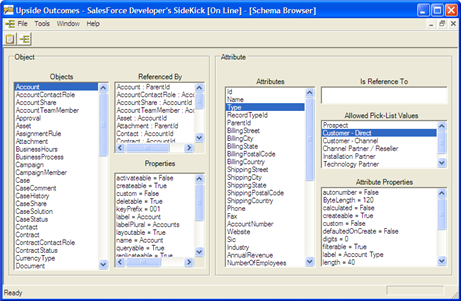
The Schema Browser (image below) provides you a quick look at an object. As you can see, I have selected the Account object. Within the “Object” frame, I can see other objects that related to the Account object and the properties of the Account object. Within the “Attribute” frame, I can see all of the fields related to my selected object. Once I select a field, I can see other information such as the object it references (for lookup fields), picklist values (for picklist fields) and the properties of the attribute.
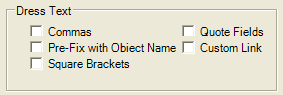
The Developer’s Helper screen puts field information into a text box for easy cutting and pasting into your code. Each object is listed along the left. Once selected, all of the fields are listed. You can then “dress the text” to have the app quickly setup the fields so you can cut and paste the text for various purposes.
This app seems pretty handy. You can actually get most of the same information from sForce Explorer with the addition of things like an SOQL tester and syntax helper. Also, sForceHerder provides another type of look at this same information. Sidekick just has a different UI and does a few things differently. I recommend having all 3 in your quiver and using the one that works best for you as you need it. The installs are all pretty light.
One thing I don’t know is what information, if any, is being sent to the vendor’s servers. I assume they are only collecting your contact information when you sign up and then associate the serial number from your registration to your record. Beyond that, it’s between you and the Salesforce.com API.
This, and their other tools, will eventually be listed on the App Exchange.

