Archive for APEX Code Category Feed

Email AutoComplete (using jQuery)

For several years, I’ve been using an app called Email AutoComplete (it’s now a private listing) to add auto complete capabilities onto my email address text boxes in the Salesforce email editor.  It’s a nice little app.  However, Arrowpointe started using Email to Case Premium (an app I highly recommend) and I wanted to have similar capabilities on their forms.

The Email AutoComplete app works well, but it written using s-Controls and Yahoo User Interface Library v2, which adds a lot of confusing code into it. It was too hard for me to change and apply to the Email to Case Premium pages.  I looked for a jQuery approach and leveraged ideas from a great blog post on the Vertical Code blog. In my case, however, I was trying to add this capability onto an AppExchange “managed” (i.e. locked down) page and onto the standard email forms from Salesforce. I didn’t have the luxury of an Apex Controller and Visualforce.

Enter the AJAX API and jQuery!

Question: How do I obtain the Session Id?

Answer: Create a Visualforce page to act as a JavaScript file. In this case, I am creating a global JavaScript variable called _my_sfdcSession.

<apex:page sidebar="false" showHeader="false" contentType="application/javascript" cache="false">
  var _my_sfdcSession = "{!$Api.Session_Id}";
</apex:page>

Question: How do I enable API access in Salesforce and turn on jQuery so its usable whereever I am (almost) in Salesforce?

Answer: Use the sidebar to inject the code. I use the Messages & Alerts sidebar item, but the same could also be done using a custom sidebar component. The key is that the component always be in the sidebar.

The code below loads the Visualforce page above to get the Session Id. Then it loads the AJAX toolkit (from Salesforce), jQuery (from Google CDN) and jQueryUI (from Google CSN). Note that the jQuery instance is put into a new variable called $_org using the jQuery.noConflict() method. I chose that variable name because I am assuming it won’t conflict with other solutions that rename jQuery.

<!-- Load Session Id -->
<script src="https://na1.salesforce.com/apex/loadSessionId?core.apexpages.devmode.url=1"></script>
<!-- Load AJAX Toolkit -->
<script src="https://na1.salesforce.com/soap/ajax/23.0/connection.js" type="text/javascript"></script>
<!-- Load jQuery -->
<script src="https://ajax.googleapis.com/ajax/libs/jquery/1.7.0/jquery.min.js"></script>
<script type="text/javascript">
var $_org = jQuery.noConflict();
</script>
<!-- Load jQuery UI -->
<link rel="stylesheet" href="https://ajax.googleapis.com/ajax/libs/jqueryui/1.8.16/themes/base/jquery-ui.css" id="theme" />
<script src="https://ajax.googleapis.com/ajax/libs/jqueryui/1.8.16/jquery-ui.min.js"></script>

NOTES:

  • If you use the Messages and Alerts sidebar component, do not put empty lines in your code because the system will add a p html tag in it
  • Use absolute references to your Salesforce pages because managed packages have a different url structure

Question: How do I implement the AutoComplete part?

Answer: Now that jQuery is loaded and we have access to the Salesforce API, we can get down to actual business. The code I am personally using is below. Not being super confident with jQuery selectors, I am hardcoding the element names to add auto complete to into my code. The downside of this is if those element names change, it will stop working, but it’s an easy fix.

This code gets a list of element Ids and then loops through them, adding autoComplete (from jQuery UI) to each one. The “source” property of autoComplete uses the Salesforce API to look for Contacts with a name or email address LIKE what is being typed in. In this case, it is handling the situation where you already have multiple names separated by ; in the email field. You will also notice the line saying sforce.connection.sessionId = _my_sfdcSession;. This line associates the Session Id from that initial page we created to the AJAX API.

I have this code stored as a Static Resource called “AutoComplete_Email”.

$_org(document).ready(function() {

	// The elements to bind email autocomplete to
	var elems = [];

	// Add Email to Case Premium elements
	elems.push('pg:addCommentF:addCommentPB:emailCustomerPBS:additionalEmailsPBSI:additionalEmails_TextBox');
	elems.push('pg:addCommentF:addCommentPB:emailCustomerPBS:additionalCCsPBSI:additionalCCs_TextBox');
	elems.push('pg:addCommentF:addCommentPB:emailCustomerPBS:additionalBCCsPBSI:additionalBCCs_TextBox');

	// Add default Salesforce email fields
	elems.push('p24'); // Additional To
	elems.push('p4'); // CC
	elems.push('p5'); // Bcc

	$_org(elems).each(function(index) {
		var thisElem = document.getElementById(elems[index]);
		$_org(thisElem).autocomplete({
			minLength: 1,
			delay: 250,

			source: function(request, response) {

						var retVal = []; // array to return

						var queryTerm = $_org.trim(request.term); // term to search for
						if (queryTerm.lastIndexOf(';') != -1){
							queryTerm = queryTerm.substring(queryTerm.lastIndexOf(';') + 1);
							queryTerm = $_org.trim(queryTerm);
						}

						if (queryTerm.length <= 1){
							$_org(thisElem).autocomplete("close");
						} else {
							sforce.connection.sessionId = _my_sfdcSession;
							var result = sforce.connection.query("SELECT Id, Name, Email FROM Contact WHERE (Name LIKE '%" + queryTerm + "%' OR Email LIKE '%" + queryTerm + "%') AND Email != NULL ORDER BY Name LIMIT 20");
							it = new sforce.QueryResultIterator(result);
							while (it.hasNext()) {
								var rec = it.next();
								var retValItem = new Object();
								retValItem.label = rec.Name + ' (' + rec.Email + ')';
								retValItem.value = rec.Email;
								retVal.push(retValItem);
							}
						}
						response(retVal);
					},

			select: function( event, ui ) {
						var tmp = $_org(thisElem).val();
						if (tmp.lastIndexOf(';') == -1){
							$_org(thisElem).val( ui.item.value + '; ' );
						} else {
							$_org(thisElem).val( tmp.substring(0, tmp.lastIndexOf(';') + 1) + ' ' + ui.item.value + '; ');
						}
						$_org(thisElem).autocomplete("close");
						return false;
					},

			focus: function(event, ui) {
				return false; // added so keyboard navigation does not overwrite the value
			}

		 });

	 });

}); // end of $_org(document).ready()

Question: Now how do I get this autoComplete code injected into the page?

Answer: Add some more code to the sidebar. The key parts are lines 6-9 below. This injects the script into the page. I personally make sure its only injected into the pages I want it to, which are the standard email pages in Salesforce and the Email to Case Premium “New Comment” page.

<script type="text/javascript">
if (
document.URL.toLowerCase().indexOf("emailauthor")!=-1 ||
document.URL.toLowerCase().indexOf("/apex/new_comment")!=-1
){
	var elem = document.createElement('script');
	elem.type='text/javascript';
	elem.src='/resource/AutoComplete_Email';
	document.body.appendChild(elem);
}
</script>

Question: What does this look like in the end?

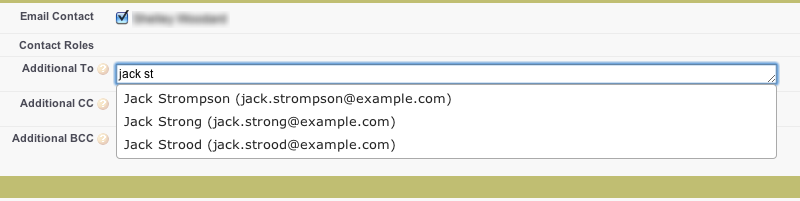
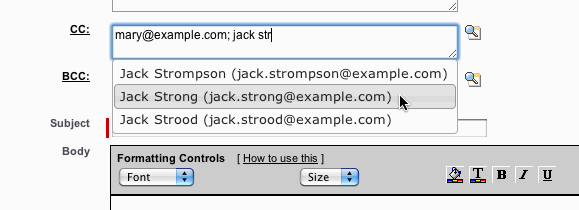
Answer: Below are 2 examples. There’s obviously more you can do with CSS. These are using the basic CSS from jQuery UI.

Salesforce Email Page

Email to Case Premium’s New Comment

Comments (10) comments feed

Proximity Searching via Apex

A new release of Geopointe will be out next week after all systems are on the Summer 11 release. With the update will come the ability to perform spatial/proximity/radial searches via Apex. Two new Apex methods are available for this:

  • radialSearchMapObject
  • radialSearchDataSet

These Apex methods enable Geopointe customers to utilize the proximity searching of Geopointe into advanced Apex logic. For information on all methods available to you, visit the Apex API page in the Help Center.

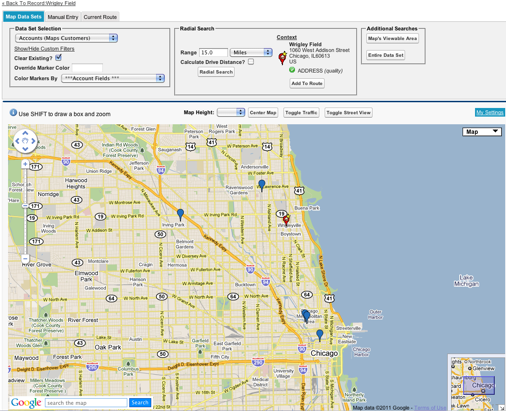
Let’s run an example.  The image below displays a query (via the Geopointe UI) of our Geopointe customers within 15 miles of Wrigley Field in Chicago. We want to accomplish this same query in Apex without ever needing the UI. Now we can and the geopointe.API class will help us with this.

Using radialSearchMapObject
This method allows you to perform a radial search against a Map Object (a Salesforce object enabled for mapping) and also allows the passing in of a custom filter. Here we are saying to search around the record with id a1430000001E32gAAC and to search the Account object with a filter of Type = ‘Customer’ for records within 15 miles.

geopointe.API.radialSearchResult result = geopointe.API.radialSearchMapObject(
     'a1430000001E32gAAC',
     'account',
     'type=\'Customer\'',
     15,
     geopointe.API.units.MILES);

system.debug(result);

Using radialSearchDataSet
The method below is accomplishing the same thing, but is using a pre-defined dataset that already has the filter for Customers built into it.

geopointe.API.radialSearchResult result = geopointe.API.radialSearchDataSet(
     'a1430000001E32gAAC',
     '12826856169860.9678661172894504',
     15,
     geopointe.API.units.MILES);

system.debug(result);

The radialSearchResult Class
Both methods result in a geopointe.API.radialSearchResult object, which is defined in the Geopointe Help Center. This object will return the record Ids closest to the center as well as the distances to these locations.

Comments (0) comments feed

Cloning Records in Apex

When you clone an sObject in Apex, it copies all the fields populated in that Apex object, not necessarily all fields on the record.  Let’s say you have a Lead with FirstName, LastName, Company,  LeadSource and Status populated.  If you do the following, the clone will not have LeadSource and Status cloned from the original record.  It will use the default values for Leads. That is because those fields were not queried into the object.

/* query lead and then clone it */
lead l = [select id, firstname, lastname, company from lead where id = '00Q3000000aKwVN' limit 1][0];
lead l2 = l.clone(false, true);
insert l2;

If you are cloning records, it can be frustrating to keep it updated as you add new fields to Salesforce. I generally want all new fields to be cloned too. I’ll code to any exceptions if needed. To help with this, I wrote myself a handy method to build me a SOQL statement and obtain all the writable fields.

public with sharing class Utils{ 

    // Returns a dynamic SOQL statement for the whole object, includes only creatable fields since we will be inserting a cloned result of this query
    public static string getCreatableFieldsSOQL(String objectName, String whereClause){

        String selects = '';

        if (whereClause == null || whereClause == ''){ return null; }

        // Get a map of field name and field token
        Map<String, Schema.SObjectField> fMap = Schema.getGlobalDescribe().get(objectName.toLowerCase()).getDescribe().Fields.getMap();
        list<string> selectFields = new list<string>();

        if (fMap != null){
            for (Schema.SObjectField ft : fMap.values()){ // loop through all field tokens (ft)
                Schema.DescribeFieldResult fd = ft.getDescribe(); // describe each field (fd)
                if (fd.isCreateable()){ // field is creatable
                    selectFields.add(fd.getName());
                }
            }
        }

        if (!selectFields.isEmpty()){
            for (string s:selectFields){
                selects += s + ',';
            }
            if (selects.endsWith(',')){selects = selects.substring(0,selects.lastIndexOf(','));}

        }

        return 'SELECT ' + selects + ' FROM ' + objectName + ' WHERE ' + whereClause;

    }

}

So if I want to clone the Lead I describe above, I’d do the following and this will ensure that I will clone all the fields on the Lead. Since the method only adds Creatable fields to the SOQL, I don’t have to worry about trying to set a formula field or system field and generating an error.

/* query lead and then clone it */
String soql = Utils.getCreatableFieldsSOQL('lead','id=\'00Q3000000aKwVN\'');
lead l = (Lead)Database.query(soql);
lead l2 = l.clone(false, true);
insert l2;

Comments (8) comments feed

Convert 15-char to 18-char IDs in Apex

I was working with someone recently who saw how I converted 15 character IDs to 18 character IDs in Apex and thought it was clever. I always thought it was something everyone knew, but just in case, I’m posting it.

All I am doing is using the ID datatype, which does it for you automatically. You just have to trap the StringException in case you get passed a string that isn’t an ID. Anyone else do it another way?

string s = '0013000000K7WW2';
try{
   ID sID = s;
   // if we get here, it's a valid ID and the sID field is an 18 character one
} catch (System.StringException e){
   // if it goes here, it's not an ID. Do something if you need to.
}

Comments (8) comments feed

Endpoint for Debugging HTTP Callouts

When I use Apex to make HTTP callouts to other web services (e.g. Google Checkout, PayPal, Shopify, MapQuest, etc), it is often a game of trial and error to get things right. Oftentimes, I get errors from the recipient that my request is invalid and, for the life of me, I cannot see the problem.

To help me debug, I keep a test endpoint in my DE orgs that I make callouts to in order to get a good look at what I am sending. It’s a simple Visualforce page that I expose over Sites to act as a fake endpoint while I do development. When developing a callout, I will often use this endpoint in the beginning to organize the parameters and then periodically throughout development to debug.

The page is simple.

<apex:page controller="Endpoint_Controller" cache="false" showHeader="false" sidebar="false" action="{!init}">
<pre>
<apex:outputText escape="false" value="{!debugInfo}"></apex:outputText>
</pre>
</apex:page>

Depending upon my need, I will add/remove the action=”{!init}” parameter from the page because I have it in there to write the {!debugInfo} variable to a Task for later review (kind of like using a task as a mini-debug log). I don’t always need it turned on, so that parameter comes and goes.

My controller, with test method, is:

public without sharing class Endpoint_Controller {

public String debugInfo {get; set;}{

debugInfo = '';

if (ApexPages.currentPage() != null){
// Incoming Headers
debugInfo += '\n***ALL INCOMING HEADERS ***\n';
for (string key: ApexPages.currentPage().getHeaders().keySet()){
if (ApexPages.currentPage().getHeaders().get(key) != null){
debugInfo += key + ' = ' + ApexPages.currentPage().getHeaders().get(key) + '\n';
}
}

// Incoming Parameters
debugInfo += '\n***ALL INCOMING PARAMETERS ***\n';
for (string key: ApexPages.currentPage().getParameters().keySet()){
if (ApexPages.currentPage().getParameters().get(key) != null){
debugInfo += key + ' = ' + ApexPages.currentPage().getParameters().get(key) + '\n';
}
}

// Other Page Reference Stuff
debugInfo += '\n***OTHER PAGE REFERENCE INFO ***\n';
debugInfo += 'Anchor: ' + ApexPages.currentPage().getAnchor() + '\n';
debugInfo += 'URL: ' + ApexPages.currentPage().getUrl() + '\n';
}

}

public Endpoint_Controller(){}

public PageReference init() {

Task t = new Task();
t.Subject = 'Endpoint Invoked';
t.Description = debugInfo;
t.ActivityDate = Date.Today();
insert t;

return null;

}

static testMethod void Endpoint_Controller_test() {

// Set the page reference and pass through some parameters
PageReference thePage = Page.Endpoint;
thePage.getParameters().put('param1','1');
thePage.getParameters().put('param2','2');
Test.setCurrentPage(thePage);

// Run the init function to have it handle the web to lead submission
Endpoint_Controller ep = new Endpoint_Controller();
ep.init();
}
}

What does it do? Well, it simply gathers up all the headers, page parameters and other useful info and outputs it in a readable way. I sent a test request to one of my pages and this is what the page produced (and logged to a task in that org):

***ALL INCOMING HEADERS ***
Accept = application/xml;charset=UTF-8
Cache-Control = no-cache, max-age=0
CipherSuite = RC4-MD5 TLSv1 128-bits
Content-Type = application/xml;charset=UTF-8
Host = testorg.secure.force.com
Pragma = no-cache
SFDC_STACK_DEPTH = 1
User-Agent = SFDC-Callout/18.0
X-Forwarded-For = 10.226.8.134
X-Salesforce-Forwarded-To = na7.salesforce.com
X-Salesforce-SIP = 204.14.234.8

***ALL INCOMING PARAMETERS ***
param1 = value1
param2 = value2
param3 = value3

***OTHER PAGE REFERENCE INFO ***
Anchor: null
URL: /apex/Endpoint?param1=value1&param2=value2&param3=value3

I also construct debugInfo variables in my Production system to capture the receipt of incoming calls to Sites pages I have exposed (e.g. Google Checkout talks to my Salesforce org via a Sites page). I will usually have a custom setting that I can turn on/off so I have an easy way to turn off the creation of those activities.

Comments (5) comments feed

« Previous entries